

So you want the best laptops for Excel, and you’re wondering if you need something powerful or if any laptop will do. The answer depends entirely on how you use Excel, and that’s the part most laptop guides get wrong.
So let me be clear up front. If you use Excel for basic spreadsheets, budgets, simple tables, small data, almost any modern laptop handles it fine. But if you work with large files, financial models, Power Pivot, Power Query, or spreadsheets with tens of thousands of rows, Excel becomes surprisingly demanding, and the specs genuinely start to count. So the right laptop depends on which of those two Excel users you are.
Quick answer before the detail. For most Excel work in 2026, you want 16GB of RAM, a fast multi-core processor, and an SSD, that combination handles even heavy spreadsheets smoothly. You do not need a gaming GPU for Excel. Below I’ll explain exactly what specs count for Excel specifically, then give you 7 solid laptops across budgets.
So, let’s get started and find out the best laptops for Excel–
Best Laptops for Excel Work in 2026
- Why RAM counts most for Excel
- The processor: multi-core for fast calculations
- SSD: non-negotiable
- GPU: you don't need one for Excel
- One thing almost no guide mentions: use 64-bit Excel
- Display, battery, and comfort
- Quick spec summary for Excel
- 1. Microsoft Surface Laptop 5
- 2. Dell XPS 15
- 3. HP Spectre x360 14
- 4. Lenovo ThinkPad X1 Carbon Gen 9
- 5. Asus ROG Zephyrus G14
- 6. Apple MacBook Pro 14-inch (2026)
- 7. Acer Swift 5
- Conclusion
- FAQ
How I picked these laptops
Quick note on how I approached this, so you know these aren’t random affiliate picks. I focused on what actually affects Excel performance, RAM and a fast multi-core processor, over specs that don’t, like a gaming GPU. I’ve used Excel heavily myself for data work (more on that below), so I weighted the things that genuinely count over hours of real spreadsheet use: performance under multitasking, display comfort, and keyboard quality. And I deliberately included options across budgets, from value picks to premium, rather than only pushing expensive machines, because most Excel users don’t need to overspend. Where a laptop is more power than Excel needs, I’ve said so honestly.
What specs actually count for Excel? (the part other guides skip)
So let me explain what makes Excel different from general laptop advice, and it’s worth understanding before you spend money, because Excel stresses your laptop in specific ways.
Why RAM counts most for Excel
RAM is the single most important spec for Excel, ahead of the processor, and far more than the graphics card. The reason is simple. Excel loads your entire workbook into RAM while you work on it. So a small spreadsheet uses almost nothing, but a large file with lots of formulas, or several big workbooks open at once, can eat gigabytes. When you run out of RAM, Excel slows to a crawl and can freeze. So for Excel, 8GB is the bare minimum for light use, 16GB is the real recommendation for 2026, and if you build large financial models or work with big datasets, 32GB genuinely helps. If you remember one thing from this guide, it’s that RAM is what counts most for Excel.
The processor: multi-core for fast calculations
The processor is second in importance, because it’s what recalculates your formulas. When you have a spreadsheet full of formulas and you change one cell, Excel recalculates, and a faster processor does that quicker. Modern Excel also uses multiple cores for calculation, so a multi-core chip helps with heavy workbooks. In 2026 that means an Intel Core Ultra, an AMD Ryzen 5 or 7, or an Apple M-series chip, all of which are plenty. So you don’t need the absolute top processor, but for heavy Excel use, a strong multi-core chip makes a real difference to recalculation speed.
SSD: non-negotiable
Always get an SSD, never a spinning hard drive. An SSD opens large Excel files far faster and makes saving and loading workbooks quick. 256GB is the minimum, 512GB is comfortable. This one’s simple, but it genuinely affects how fast big files open.
GPU: you don’t need one for Excel
So do you need a graphics card for Excel? No. Excel barely uses the GPU, integrated graphics handle spreadsheets, charts, and even large pivot tables perfectly well. So don’t pay extra for a dedicated gaming GPU if Excel is your main use, that money is far better spent on more RAM. The only exception is if you also do machine learning or heavy data science alongside Excel, in which case see my best laptops for data analysis guide.
One thing almost no guide mentions: use 64-bit Excel
So this is a genuinely useful tip. If you work with large files, make sure you’re running the 64-bit version of Excel, not the 32-bit one. The 32-bit version is capped at about 2GB of memory no matter how much RAM your laptop has, which is exactly why some people’s Excel crashes on big files even on a powerful laptop. The 64-bit version can use all your RAM. So a great laptop with 32-bit Excel will still choke on large workbooks, check this, it’s free to fix and it catches a lot of people out.
Display, battery, and comfort
For comfort during long spreadsheet sessions, a 15-inch Full HD screen or larger helps a lot, more screen means more rows and columns visible at once, which genuinely speeds up your work. A higher-resolution screen also makes dense spreadsheets sharper and easier on the eyes. Battery life helps if you work on the move, and Apple’s M-series laptops lead here. And a comfortable keyboard with a proper number pad is worth looking for if you enter a lot of data, the number pad especially speeds up data entry.
Quick spec summary for Excel
| Spec | Light Excel use | Heavy Excel (models, big files) |
|---|---|---|
| RAM | 8GB | 16GB–32GB |
| Processor | Core Ultra / Ryzen 5 / M-series | Strong multi-core Core Ultra / Ryzen 7 / M-series Pro |
| Storage | 256GB SSD | 512GB+ SSD |
| GPU | Integrated (fine) | Integrated (still fine) |
| Display | 14–15″ Full HD | 15″+ Full HD or higher |
| Excel version | 64-bit | 64-bit (essential) |
For Excel, RAM and a fast multi-core CPU count most. A GPU does not. Don’t overspend on graphics, spend on RAM.
My experience using a MacBook for Excel
Let me share this before the list, because it shaped how I think about Excel laptops. I’ve personally used a MacBook for Excel, and my experience has been genuinely positive, and what I noticed most wasn’t just the speed, but how comfortable the whole workflow feels over long periods.
When I work in Excel, I do more than enter data. I move between spreadsheets, work with formulas, analyse data, and switch between Excel and other apps. The MacBook handles that multitasking smoothly, which really counts when you’re working for several hours straight. The display and keyboard made a bigger difference than I expected too, when you spend hours looking at rows, columns, and formulas, a good screen and a comfortable keyboard quietly affect your productivity more than any spec sheet suggests.
And the practical thing I took from it was this: I did not need a gaming laptop or an extreme configuration to work comfortably in Excel. For normal data analysis and spreadsheet work, I’d focus on enough RAM, a fast SSD, and a capable processor, not on specs I’d never use.
One honest caveat, though, because a MacBook is not automatically the best Excel laptop for everyone. If your work depends on Windows-specific Excel features, add-ins, or a workflow built around Windows, a Windows laptop is the better choice. For me, the MacBook works because I use it as part of a broader data-work setup, not only for Excel.
So my biggest takeaway, and the honest advice under this whole list: don’t choose an Excel laptop on the processor name or the RAM number alone. Think about how you actually work. If you live in spreadsheets for hours, the combination of performance, display, keyboard, portability, battery, and software compatibility counts far more than any single spec. If you already prefer macOS and your Excel work doesn’t depend on Windows-only features, a MacBook is a very good option. If Excel is the center of your job and you rely on Windows-specific functionality, lean toward a Windows laptop instead.
The 7 best laptops for Excel in 2026
(Specs shown are a guide, always check the current model and price on Amazon, since laptop versions update often.)
| Laptop | Best for | RAM (configurable) | Screen | Excel verdict |
|---|---|---|---|---|
| Microsoft Surface Laptop 5 | Premium all-rounder | 8–16GB+ | ~13–15″ high-res | Great for portable Office work |
| Dell XPS 15 | Heavy Excel & big files | 16–32GB+ | 15.6″ | Best for large models/datasets |
| HP Spectre x360 14 | Flexible 2-in-1 | 16GB+ | ~14″ touchscreen | Good if you want convertible |
| Lenovo ThinkPad X1 Carbon Gen 9 | Best keyboard, business | 16–32GB | ~14″ | Best for heavy data entry |
| Asus ROG Zephyrus G14 | Excel + heavy computing | 16–32GB | 14″ | Overkill for Excel alone |
| Apple MacBook Pro 14-inch (2026) | Mac users, battery life | 16–36GB+ | 14″ Liquid Retina | Excellent (my own pick) |
| Acer Swift 5 | Best value / budget | 8–16GB | ~14″ | Solid Excel on a budget |
Configurations vary by model year, always confirm the current RAM, screen, and price on Amazon before buying. For heavy Excel, prioritise 16GB+ RAM over anything else.
Now, let’s move to the Best Laptops for Excel–
1. Microsoft Surface Laptop 5
- Processor: 11th Gen Intel Core i7
- RAM: 16GB
- Storage: 512GB SSD
- Display: 13.5-inch PixelSense touchscreen
- Why it’s great for Excel:
- The touchscreen enhances data manipulation.
- Powerful processor ensures smooth spreadsheet operations.
- Ample RAM for handling large datasets.

Best for: a premium, portable all-rounder for Office work
The Surface Laptop is a natural fit for Excel, since it’s Microsoft’s own hardware built around Windows and Office. It’s light, has a lovely high-resolution screen that shows plenty of spreadsheet at once, and the build quality is excellent. With 16GB of RAM and a current processor, it handles everyday Excel and moderately heavy files smoothly. A great pick if you want something premium and portable that just works with Office.
Honest trade-off: base models can come with only 8GB RAM, so configure 16GB for Excel, and there’s no number pad if you do heavy data entry.
2. Dell XPS 15
- Processor: 10th Gen Intel Core i9
- RAM: 32GB
- Storage: 1TB SSD
- Display: 15.6-inch 4K UHD InfinityEdge OLED
- Why it’s great for Excel:
- High-performance Intel Core i9 processor.
- Massive 32GB RAM for handling complex calculations.
- Stunning 4K OLED display for crystal-clear visuals.

Best for: heavy Excel use and large files
The Dell XPS 15 is one of the best laptops for demanding Excel work. The larger 15-inch screen is genuinely helpful for big spreadsheets, and configured with 16GB or 32GB of RAM and a strong multi-core processor, it powers through large files and complex models without slowing down. If you build financial models or work with big datasets in Excel, this is the one I’d point you to.
Honest trade-off: it’s heavier and pricier than the others, and it can run warm under sustained load, but for heavy Excel that power is the point.
3. HP Spectre x360 14
- Processor: 11th Gen Intel Core i7
- RAM: 16GB
- Storage: 1TB SSD
- Display: 13.5-inch 3:2 OLED touch display
- Why it’s great for Excel:
- Versatile 2-in-1 design for flexibility.
- OLED touch display for precise data manipulation.
- Powerful specs for seamless Excel performance.

Best for: a convertible 2-in-1 for flexible work
The HP Spectre x360 is a premium 2-in-1, so you can use it as a laptop or fold it into a tablet, handy if you review spreadsheets in meetings. It has a sharp screen, solid build, and with 16GB of RAM it handles Excel comfortably. A good choice if you want flexibility and a premium feel alongside strong Excel performance.
Honest trade-off: the 14-inch screen shows less spreadsheet at once than a 15-inch, and 2-in-1s cost a premium for the convertible hinge you may not use for Excel.
4. Lenovo ThinkPad X1 Carbon Gen 9
- Processor: 11th Gen Intel Core i7
- RAM: 16GB
- Storage: 512GB SSD
- Display: 14-inch 4K Dolby Vision HDR
- Why it’s great for Excel:
- Durable and lightweight for portability.
- Crisp 4K Dolby Vision HDR display.
- Reliable performance with Intel Core i7 and 16GB RAM.

Best for: business users who want the best keyboard
ThinkPads are the classic business laptop, and the X1 Carbon is the flagship. For Excel specifically, the standout is the keyboard, if you enter a lot of data, ThinkPad keyboards are among the best you can type on. It’s light, durable, business-grade reliable, and with 16GB of RAM it handles heavy Excel work well. The pick for professionals who live in spreadsheets all day.
Honest trade-off: ThinkPads are business-priced and the design is plain, you pay for the keyboard and durability, not looks.
5. Asus ROG Zephyrus G14
- Processor: AMD Ryzen 9 5900HS
- RAM: 32GB
- Storage: 1TB SSD
- Display: 14-inch QHD 144Hz
- Why it’s great for Excel:
- Powerful AMD Ryzen 9 processor.
- Generous 32GB RAM for multitasking.
- QHD display with a high refresh rate for smooth visuals.
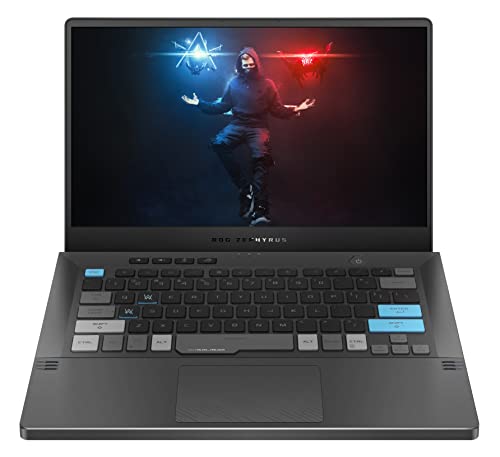
Best for: people who need Excel plus heavy computing power
The Asus ROG Zephyrus G14 is a compact powerhouse. It’s technically a gaming laptop, so it’s overkill for Excel alone, but if you need serious power for other work too, data science, video, heavy multitasking, alongside Excel, it delivers, with a strong processor and plenty of RAM. Only choose this if you need the extra power beyond Excel, otherwise it’s more than spreadsheets require.
Honest trade-off: as a gaming laptop it’s the worst battery life here and you’re paying for a GPU Excel never touches.
6. Apple MacBook Pro 14-inch (2026)
- Processor: Apple M2 Pro
- RAM: 16GB
- Storage: 512GB SSD
- Display: 14.2-inch Liquid Retina XDR
- Why it’s great for Excel:
- Apple M2 Pro for efficient performance.
- Stunning Liquid Retina XDR display.
- macOS optimized for a seamless Excel experience.

Best for: Mac users who want speed and battery life
Excel runs beautifully on Mac, and the MacBook Pro with an M-series chip is fast, quiet, and has outstanding battery life, easily a full workday. The screen is superb for detailed spreadsheets. If you prefer macOS and want a laptop that stays fast for years, this is the premium Excel choice. Just note Excel for Mac has a few small feature differences from Windows, though for the vast majority of users they won’t be an issue.
Honest trade-off: it’s the most expensive option, and if your workflow needs Windows-only Excel add-ins, it’s not for you (as I explain from my own use above).
7. Acer Swift 5
- Processor: 11th Gen Intel Core i5
- RAM: 16GB
- Storage: 512GB SSD
- Display: 14-inch FHD IPS
- Why it’s great for Excel:
- Lightweight and ultra-portable.
- Solid performance with Intel Core i5 and 16GB RAM.
- FHD IPS display for crisp visuals.

Best for: the best value / budget-friendly pick
If you want solid Excel performance without paying premium prices, the Acer Swift line is the value pick here. It’s light, comes with a current processor and 16GB of RAM in many configurations, and handles everyday and moderately heavy Excel work well for the money. A great choice if you want capable Excel performance on a tighter budget.
Honest trade-off: build quality and screen brightness aren’t at the premium level of the others, and you’ll want to pick a 16GB configuration rather than the cheapest 8GB one.
Which laptop should you choose for your Excel use?
So let me match these to real situations, since “best” depends on how you use Excel.
If you do light-to-moderate Excel, budgets, tracking, everyday spreadsheets, the Acer Swift or Surface Laptop are plenty and won’t waste money on power you don’t need. If you do heavy Excel, big files, financial models, large datasets, the Dell XPS 15 or a well-configured ThinkPad X1 with 16-32GB of RAM is the right call. If you want the best keyboard for heavy data entry, the ThinkPad. If you’re a Mac person, the Apple MacBook Pro. And if you need Excel plus serious computing power for other work, the Asus.
One honest thing, for pure Excel, don’t overspend. Excel doesn’t need a gaming laptop. A mid-range machine with 16GB of RAM, a good multi-core processor, and an SSD handles almost everything most Excel users throw at it. Put your money into RAM, not graphics.
Can you run Excel on a cheap or budget laptop?
Yes, for normal use. Basic Excel, spreadsheets, budgets, small tables, runs fine on an affordable laptop with 8GB of RAM and an SSD. So if your Excel work is everyday stuff, you don’t need to spend a lot. Where a cheap laptop struggles is with large files, big financial models, or heavy Power Pivot and Power Query work, that’s when the extra RAM and a stronger processor earn their cost. So match the spend to your actual work: light Excel, a budget laptop is genuinely fine; heavy Excel, invest in RAM.
Is the same laptop good for Excel and Power BI?
Mostly yes, and this comes up a lot since many people use both. Power BI is a bit more demanding than Excel, it likes plenty of RAM (16GB or more) for handling data models, but like Excel, it doesn’t need a gaming GPU. So a laptop that’s good for heavy Excel, 16-32GB RAM, a strong processor, an SSD, is also good for Power BI. If you work across both, lean toward 16GB minimum, ideally 32GB. I cover the data side more in my Power BI courses guide.
And here the list ends! So these are the 7 Best Laptops for Excel in 2026. Now it’s time to wrap up.
Conclusion
So those are the 7 best laptops for Excel in 2026, and the specs that actually count. The key thing to remember, Excel loves RAM and a fast processor, not a graphics card. So get at least 16GB of RAM (32GB for heavy models), a good multi-core chip, and an SSD, run 64-bit Excel, and you’ll fly through even large spreadsheets.
So pick the one that matches your budget and how heavy your Excel work is, and don’t overspend on a gaming GPU you won’t use. If you’ve got a laptop you love for Excel, tell me in the comments. I read and reply to every one.
All the best.
FAQ
You May Also Be Interested In
10 Best Online Courses for Data Science with R Programming
8 Best Free Online Data Analytics Courses You Must Know in 2026
Data Analyst Online Certification to Become a Successful Data Analyst
8 Best Books on Data Science with Python You Must Read in 2026
14 Best+Free Data Science with Python Courses Online- [Bestseller 2026]
10 Best Online Courses for Data Science with R Programming in 2026
8 Best Data Engineering Courses Online- Complete List of Resources
Thank YOU!
To explore More about Data Science, Visit Here
Thought of the Day…
‘ It’s what you learn after you know it all that counts.’
– John Wooden

Written By Aqsa Zafar
Aqsa Zafar is a Ph.D. scholar in Machine Learning at Dayananda Sagar University, specializing in Natural Language Processing and Deep Learning. She has published research in AI applications for mental health and actively shares insights on data science, machine learning, and generative AI through MLTUT. With a strong background in computer science (B.Tech and M.Tech), Aqsa combines academic expertise with practical experience to help learners and professionals understand and apply AI in real-world scenarios.