
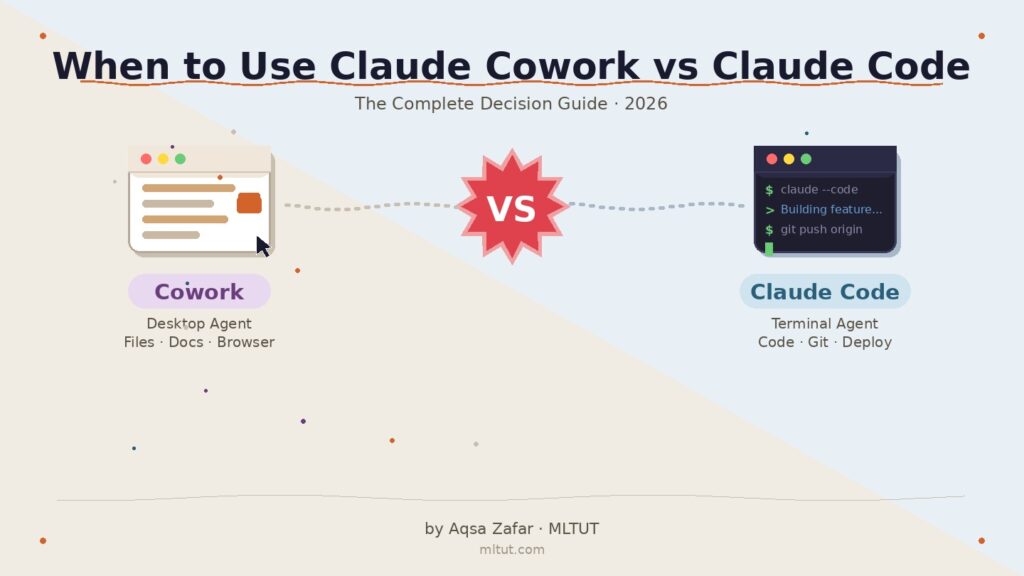
I spent the last several months building real projects with both Claude Code and Claude Cowork. I shipped features using Claude Code from my terminal. I organized research folders, generated slide decks, and automated browser tasks using Cowork from the Claude Desktop app. And I kept running into the same question from readers and students: “When to Use Claude Cowork vs Claude Code?”
The short answer is: they solve different problems. But the short answer never helps when you’re sitting in front of your computer, staring at both tabs, and trying to figure out which one will actually get your work done faster.
This guide breaks down every meaningful difference between Claude Cowork and Claude Code. I wrote it for people who want a clear, practical answer. By the time you finish reading, you will know exactly which tool fits your workflow, when you might need both, and how to get the most out of each one.
Now, let’s see when to use Claude Cowork vs Claude Code?–
When to Use Claude Cowork vs Claude Code
- 1. What Claude Code and Claude Cowork Actually Are
- 2. The Core Difference That Drives Everything Else
- 3. Claude Code: What It Does and Who It's For
- 4. Claude Cowork: What It Does and Who It's For
- 5. Side-by-Side Feature Comparison
- 6. 12 Real Scenarios — Which Tool Wins Each One
- 7. When You Should Use Both Together
- 8. Agent Teams: The Advanced Layer Inside Claude Code
- 9. Pricing, Plans, and Usage Limits
- 10. Common Mistakes People Make When Choosing
- 11. The Decision Framework: Pick the Right Tool in 60 Seconds
- 12. Frequently Asked Questions
- Final Thoughts
1. What Claude Code and Claude Cowork Actually Are
Anthropic now ships three distinct products under the Claude brand: Claude (the chat interface), Claude Code, and Claude Cowork. They all run on the same underlying model, but the way they interact with your computer and your work differs dramatically.
Claude Code is a terminal-native coding agent. You install it locally, launch it from your command line, and it reads your entire codebase. It writes code, runs scripts, manages Git operations, executes terminal commands, and handles multi-file edits: all from plain English instructions. Think of it as a senior developer sitting inside your terminal who never sleeps and never forgets the project structure.
Claude Cowork is a desktop automation agent that lives inside the Claude Desktop app. It accesses your local files through a graphical interface. You point it at a folder, describe what you want, and it plans, executes, and delivers finished work. Sorted folders. Polished slide decks. Spreadsheets with working formulas. Research pulled from the web and saved into organized documents. No terminal. No code. No technical setup required.
Both tools share the same agentic architecture under the hood. Cowork is essentially Claude Code’s execution engine wrapped in a GUI. The raw capabilities overlap significantly. What separates them is the interface, the audience, and the type of control you get over what happens.
Key distinction: Claude Code gives you precision and full system access. Cowork gives you simplicity and safety. The underlying engine is the same: the tradeoff is control versus convenience.
2. The Core Difference That Drives Everything Else
Every capability difference between Cowork and Claude Code flows from one fundamental tradeoff: ease of use versus control over execution.
Cowork reduces effort. Setup takes minutes. You describe tasks in natural language. The GUI removes every technical barrier that would otherwise keep non-developers away from an autonomous agent. You see a plan before Claude executes anything. You approve folder access. You watch each step happen in real time.
Claude Code increases precision. Full terminal access. Direct command execution. Codebase-level context. You control exactly what Claude does, review intermediate outputs at each step, and correct course with the same granularity you would apply to your own code.
Neither tool replaces the other. Developers benefit from Code for engineering work and Cowork for operational tasks. Non-technical users benefit from Cowork without ever needing Code. The overlap exists in the middle, and that’s where the confusion happens.
Let me put this differently. If you handed both tools the same task — say, “organize these 200 PDF files by date and create a summary spreadsheet” — both could handle it. But the experience would feel completely different. In Claude Code, you would type a command, watch the terminal output scroll by, and inspect the result using command-line tools. In Cowork, you would describe the task in the chat window, approve the plan, and watch Claude operate visually while you grab a coffee.
Same result. Different path. Different user.
3. Claude Code: What It Does and Who It’s For
Claude Code runs in your terminal and works alongside your preferred IDE and development tools. You don’t need to change your workflow; it enhances the stack you already have. It connects with Git, GitHub, your CLI tools, deployment pipelines, databases, and monitoring services.
What Claude Code Can Actually Do
The feature list has grown significantly over the past year, especially with v2. x updates in early 2026. Here’s what matters most in practice:
Full codebase understanding. Claude Code maps and explains entire codebases in seconds. It uses agentic search to understand project structure, dependencies, and relationships between files without you manually selecting context. You can ask “how does the authentication flow work in this project?” and get an accurate architectural answer.
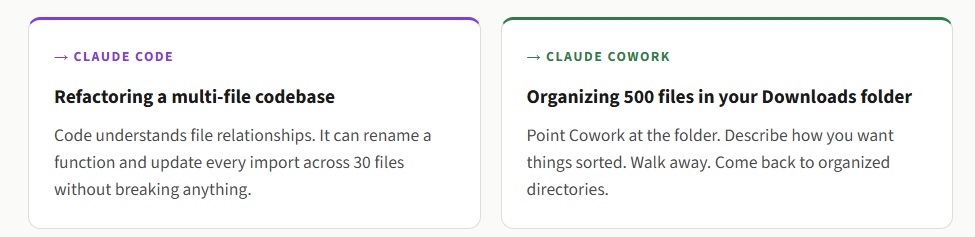
Multi-file editing. This is where Claude Code separates itself from chat-based coding tools. It understands how changes in one file affect other files. It can refactor a function, update every file that imports it, adjust the tests, and fix the build — all in one session.
Terminal command execution. Claude Code runs shell commands, builds scripts, deployment workflows, and test suites directly. It asks permission before executing anything, so you stay in control.
Git integration. It reads issues, writes code, runs tests, and submits pull requests. The entire development lifecycle, from reading a GitHub issue to pushing a fix, can happen without leaving the terminal.
MCP (Model Context Protocol) support. This lets you connect Claude Code to external tools. I use MCP servers to connect it to GitHub, and some developers connect it to Slack, ClickUp, Fireflies, and other services. You can fetch meeting transcripts, post updates to project management tools, and query databases, all through natural language in the terminal.
Voice mode. You can speak instead of typing. Hold the spacebar in the CLI, describe what you want, and Claude writes the code. I know it sounds gimmicky, but once you start using it for longer instructions, it saves real time.
Background agents and /loop. You can kick off long-running tasks in the background and keep working on other things. The /loop command turns Claude Code into a scheduled worker; it can review pull requests every 5 minutes, monitor deployments, or run recurring automation tasks for up to a week.
Who Should Use Claude Code
Software engineers and developers who live in the terminal. If you already use Git, run build commands, and write code daily, Claude Code fits into your existing workflow without friction.
Technical founders who build their own products. Claude Code lets a solo developer operate like a small team. You can prototype features, write tests, manage deployments, and handle DevOps, all through natural language in a single terminal session.
DevOps and infrastructure engineers. The ability to execute system commands, manage configurations, and automate deployment pipelines makes Claude Code valuable beyond just writing application code.
Anyone comfortable with the command line. You don’t need to be a senior engineer. If you can navigate directories, run commands, and read terminal output, Claude Code will work for you. The learning curve is real but manageable; most people get productive within a few days.
4. Claude Cowork: What It Does and Who It’s For
Cowork was announced on January 12, 2026, and Anthropic positioned it as “Claude Code for the rest of your work.” That tagline is accurate. It takes the agentic, asynchronous workflow that developers loved in Claude Code and wraps it in a visual interface that doesn’t assume you know what a terminal is.
You access Cowork through its own tab in the Claude Desktop app, right alongside Chat and Code. You give it access to a folder, describe an outcome, and Claude plans and executes the steps while keeping you informed.
What Cowork Can Actually Do
Direct local file access. Claude can read from and write to your local files without manual uploads or downloads. Point it at your Downloads folder, your project directory, or your Documents folder. It works with whatever is on your disk.
Sub-agent coordination. For complex tasks, Cowork breaks the work into smaller pieces and coordinates parallel workstreams. If you ask it to “research competitor pricing and create a comparison spreadsheet,” it might spin up one sub-agent for research and another for spreadsheet creation, then merge the results.
Professional document generation. Cowork produces polished deliverables, Excel spreadsheets with working formulas, PowerPoint presentations, formatted Word documents, and organized research reports. The output quality for documents has impressed me consistently.
Browser automation. If you connect Cowork to Chrome, it can interact with your logged-in browser sessions. It reads your Gmail, checks analytics dashboards, pulls data from web apps, and navigates websites. This is genuinely useful for tasks that involve copying information from web interfaces into local files.
Scheduled tasks. Type /schedule in any Cowork task and set up recurring automation. Daily inbox summaries. Weekly report generation. Automated file backups. The tasks run while the Claude Desktop app is open and your computer is awake.
Projects. Anthropic added Projects to Cowork in March 2026. Each project bundles a folder, instructions, task history, and memory into a persistent workspace. Instead of starting fresh every session, you can pick up where you left off. This is a big deal for anyone running ongoing research or operational workflows.
Plugins and Skills. Cowork supports plugins, pre-built bundles of skills, connectors, and sub-agents designed for specific workflows. You can also create your own custom skills that teach Claude how to handle tasks specific to your work.
Who Should Use Cowork
Non-technical professionals who want AI automation without writing code or touching a terminal. Marketing managers, project coordinators, researchers, business analysts, and content creators, if your work involves files, documents, spreadsheets, and browser tasks, Cowork handles it.
Founders and operators who handle both strategy and execution. You don’t have time to learn terminal commands. You need something that takes a task off your plate and delivers a finished result. Cowork does that.
Anyone overwhelmed by file management. If your desktop looks like a digital landfill, hundreds of screenshots, PDFs, random downloads, scattered notes — Cowork can sort, rename, organize, and index everything in minutes.
Developers doing non-coding work. Even if you use Claude Code for engineering, Cowork handles the operational side — drafting documentation, organizing research, creating presentations, and managing meeting notes. Many developers I know use both tools daily for different parts of their workday.
My experience: Cowork’s biggest strength is persistence. Unlike regular Claude chat, Cowork doesn’t quit halfway through complex tasks. It keeps working, coordinates sub-agents, and delivers complete results. That async workflow, handing off a task and coming back to find it done, is genuinely new for non-developers.
5. Side-by-Side Feature Comparison
I’ve tested both tools extensively. Here’s how they compare across every dimension that matters:
| Feature | Limited — uses a sandboxed virtual machine | Claude Cowork |
|---|---|---|
| Interface | Terminal (CLI), IDE extensions, web, mobile | Claude Desktop app (GUI tab) |
| Target User | Developers, engineers, technical users | Everyone — especially non-developers |
| Setup Difficulty | Moderate — requires terminal familiarity | Minimal — open the app, click Cowork |
| File Access | Full filesystem access within project scope | Folder-level permissions you explicitly grant |
| Code Execution | Full — runs scripts, shell commands, build tools | Always shows a plan before execution |
| Codebase Awareness | Deep — maps entire project structure | None — not designed for code projects |
| Git Integration | Full — branches, commits, PRs, reviews | None |
| Browser Access | Via MCP (Chrome DevTools, Playwright) | Built-in Chrome integration |
| Document Generation | Possible but manual | Built-in — PPTX, XLSX, DOCX, formatted reports |
| MCP Support | Full — connect any MCP server | Growing — connectors available |
| Scheduled Tasks | Yes — /loop and /schedule | Yes — /schedule |
| Multi-Agent Support | Yes — Agent Teams (research preview) | Yes — sub-agent coordination |
| Platform Support | macOS, Linux, Windows | macOS, Windows (added later) |
| Security Model | Application-layer hooks, permission prompts | Sandboxed VM, folder-level permissions |
| Plan Review | Plan mode (manual activation) | Always shows plan before execution |
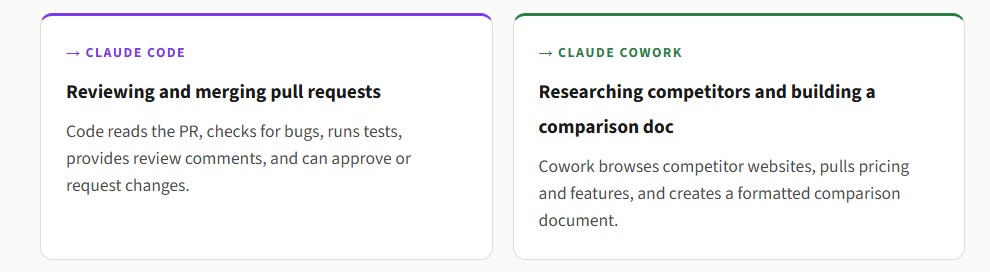
6. 12 Real Scenarios — Which Tool Wins Each One
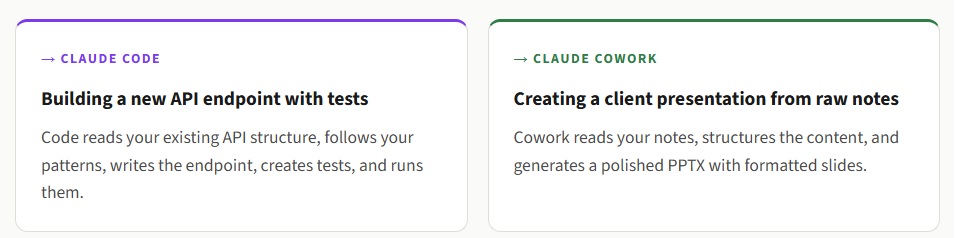
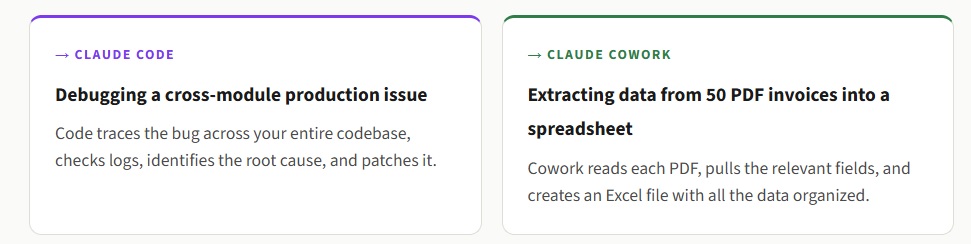
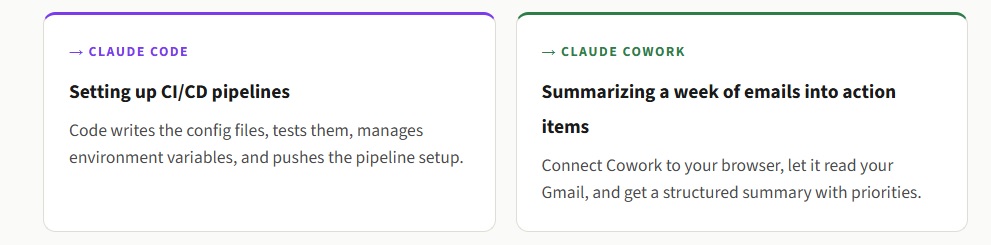
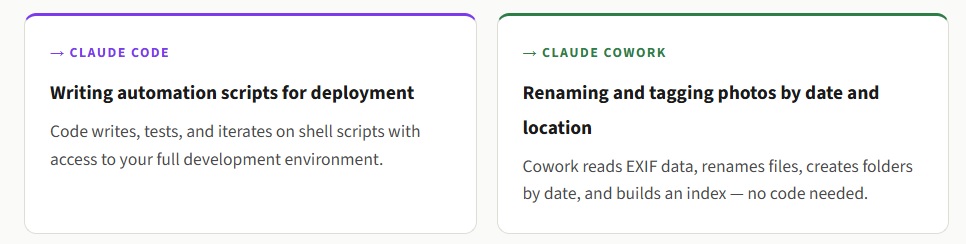
Theory is useful. But you came here to make a decision. Here are twelve common scenarios, and the tool I would pick for each one:
7. When You Should Use Both Together
The most productive setup I’ve found, and the one I personally use, combines both tools for different parts of my workday.
I use Claude Code for all software development, scripting, and technical execution. Writing code, debugging, managing repositories, automating pipelines, reviewing pull requests.
I use Cowork for everything else. Organizing research for my blog posts. Generating presentations for talks. Creating spreadsheets from raw data. Pulling information from the web. Managing files across projects.
Both tools sit in the same Claude Desktop app. Switching between them takes one click. They share the same subscription quota, so there’s no extra cost for using both.
Here’s a real example from last week. I was working on a new feature for a side project. I used Claude Code to write the backend API, create the database migrations, and push the code. Then I switched to the Cowork tab and asked it to create a product requirements document summarizing what I built, format it as a Word doc, and include screenshots from the staging environment (via browser access). Two tools, one workflow, zero context switching to different apps.
This dual setup works especially well for startups and small teams where the same person handles both technical and operational work. You stop being limited by your own bandwidth because both types of work, the coding and the operations, get delegated to the right tool.
The Takeaway: Don’t think of Claude Code and Cowork as competitors. Think of them as teammates. Code handles the engineering. Cowork handles the operations. You stay in control of both.
8. Agent Teams: The Advanced Layer Inside Claude Code
If you’ve been using Claude Code for a while, you’ve probably hit the moment where one session isn’t enough. You want one agent reviewing code while another writes tests and a third handles documentation. That’s exactly what Agent Teams does.
Agent Teams is a research preview feature inside Claude Code that enables multi-agent collaboration. You define specialized roles: a team lead, a code reviewer, a test writer, and they work in parallel on different parts of a task. The team lead coordinates, assigns subtasks, and merges results.
This is different from Cowork’s sub-agent coordination. Agent Teams operates at the code level with full terminal access and codebase awareness. Each teammate gets their own execution context and can go deep on their specific area without losing context to task switching.
I tested Agent Teams on a medium-sized refactoring project. I set up three agents: one to handle the backend changes, one to update the frontend components, and one to fix and run the test suite. All three worked simultaneously in split tmux panes, and I could watch each one making progress in real time. The quality of the output was noticeably better than running everything sequentially through a single session, because each agent could focus deeply on its assigned area.
Agent Teams requires comfort with tmux or iTerm2 for the split-pane view. It’s not for beginners. But if you’re already productive with Claude Code and want to multiply your output, this is the feature to explore next.
9. Pricing, Plans, and Usage Limits
Both Claude Code and Cowork are included in the same Anthropic subscription. You don’t pay separately for each tool. Here’s how the plans break down:
Claude Pro ($20/month): Gives you access to both Claude Code and Cowork. This is enough for casual and moderate use. You will hit usage limits during heavy sessions, especially with Claude Code, which burns through tokens faster than regular chat because of the codebase context it processes.
Claude Max ($100/month or $200/month): Higher usage limits. If you use Claude Code or Cowork extensively, running long sessions, multiple agents, or heavy automation, Max is worth the upgrade. The $200 tier gives you the highest token allocation.
Team and Enterprise plans: Both tools are available on these plans with additional features like admin controls, audit logs (for regular Claude and Code, Cowork doesn’t support audit logs yet), and team management.
One important detail: Cowork consumes significantly more of your usage allocation than regular Claude chat. Complex multi-step tasks are compute-intensive and require more tokens. If you’re on the Pro plan and use Cowork heavily, expect to hit limits faster than you would with chat alone. Batch related work into single sessions to optimize your usage.
Claude Code also drains tokens quickly, especially for tasks that involve reading large codebases or running extended background agents. If you use both tools daily, the Max plan is the pragmatic choice.
10. Common Mistakes People Make When Choosing
Mistake 1: Picking Claude Code because it sounds “more powerful.”
Power without relevance is wasted effort. If you don’t write code and don’t work in a terminal, Claude Code’s power goes unused. Cowork handles non-coding work with the same underlying intelligence, just through a different interface. Pick the tool that matches your work, not the one that sounds more impressive.
Mistake 2: Assuming Cowork is “the beginner version.”
Cowork is simpler to use, but “simpler” doesn’t mean “less capable.” For file management, document generation, browser automation, and operational workflows, Cowork delivers results that Claude Code can’t match without custom scripting. The simplicity is a design choice, not a limitation.
Mistake 3: Trying to use Claude Code for non-coding tasks
Yes, Claude Code can organize files and create documents through terminal commands. But you’re forcing a developer tool to do an operator’s job. Cowork handles those tasks with less friction, better output formatting, and a more intuitive interaction model. Use each tool where it shines.
Mistake 4: Ignoring the security differences
Cowork runs in a sandboxed virtual machine isolated from the wider internet. Claude Code operates with more open system access. If security is a primary concern, especially for sensitive business files, Cowork’s sandboxed approach provides inherently more protection. Understand the tradeoff before granting either tool access to important data.
Mistake 5: Not using both
The most common mistake I see among developers is never opening the Cowork tab. They do everything through Claude Code, including tasks that Cowork handles better. If you’re a developer who also writes documentation, creates presentations, manages research, or organizes project files, add Cowork to your workflow. It’s already included in your subscription.
11. The Decision Framework: Pick the Right Tool in 60 Seconds
I created this decision framework based on the patterns I’ve observed across hundreds of use cases. Answer these questions in order and stop at the first match: Now, let’s see when to use Claude Cowork vs Claude Code?–
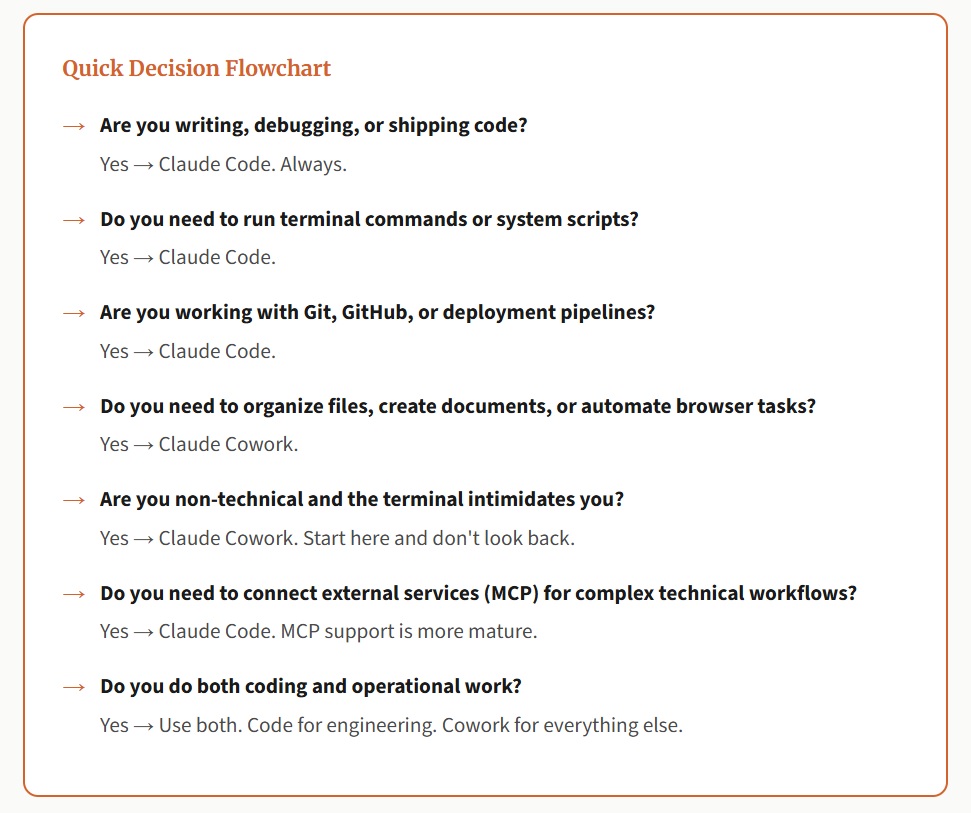
Still unsure? Start with Cowork. It’s easier to set up, safer by default, and gives you a feel for what agentic AI can do. If you hit limitations because you need terminal access or codebase-level context, graduate to Claude Code. If you want structured guidance for Claude Code specifically, my step-by-step course walks you through everything from installation to advanced workflows.
12. Frequently Asked Questions
Final Thoughts
I get asked about Claude Cowork vs Claude Code almost every day now. And every time, my answer starts the same way: stop treating them as rivals. Anthropic built these two tools to handle different parts of your workday, not to replace each other.
The real answer to the Claude Cowork vs Claude Code question comes down to what you’re doing in the next 30 minutes. Writing a function? Open the terminal. Sorting a messy folder of receipts into a spreadsheet? Open Cowork. Building an API and then creating a client presentation about it? Use both; one-click switches you between tabs in the same app under the same subscription.
I’ve watched people waste weeks debating which tool to learn first. Meanwhile, the people who just picked one and started working are already shipping results. That’s the thing about this Claude Cowork vs Claude Code decision: it only feels high-stakes until you realize you can switch freely and use both whenever you want.
Both tools change fast. Anthropic pushes Claude Code updates almost weekly, and Cowork is still in research preview with major features dropping regularly. I plan to keep this guide current as new capabilities roll out. Bookmark it and come back whenever you need a fresh take on what’s changed.
And if you want hands-on, structured guidance instead of reading, my video resources walk through everything from first installation to advanced workflows using real projects. That’s where the Claude Cowork vs Claude Code differences become obvious, because you see each tool in action on actual tasks.
Happy Learning!
You May Also Be Interested In
Best Resources to Learn Computer Vision (YouTube, Tutorials, Courses, Books, etc.)- 2026
Best Certification Courses for Artificial Intelligence- Beginner to Advanced
Best Natural Language Processing Courses Online to Become an Expert
Best Artificial Intelligence Courses for Healthcare You Should Know in 2026
What is Natural Language Processing? A Complete and Easy Guide
Best Books for Natural Language Processing You Should Read
Augmented Reality Vs Virtual Reality: Differences You Need To Know!
What are Artificial Intelligence Examples? Real-World Examples
Thank YOU!
Explore more about Artificial Intelligence.
Thought of the Day…
‘ It’s what you learn after you know it all that counts.’
– John Wooden

Written By Aqsa Zafar
Aqsa Zafar is a Ph.D. scholar in Machine Learning at Dayananda Sagar University, specializing in Natural Language Processing and Deep Learning. She has published research in AI applications for mental health and actively shares insights on data science, machine learning, and generative AI through MLTUT. With a strong background in computer science (B.Tech and M.Tech), Aqsa combines academic expertise with practical experience to help learners and professionals understand and apply AI in real-world scenarios.